

TL;DR : Comment protéger une page WordPress par mot de passe WordPress dispose d'une option de mot de passe intégrée pour les pages, et les mêmes techniques permettent de verrouiller les articles, les produits et des catégories entières. Voici les méthodes à connaître, en fonction du niveau de contrôle dont vous avez besoin.
- Paramètre de visibilité intégré : Option la plus rapide. Ouvrez votre page, définissez la Visibilité sur Protégé par mot de passe, entrez un mot de passe et publiez.
- Fonctionne au-delà des pages : Le même paramètre protège les articles et les produits WooCommerce, et SeedProd peut verrouiller des catégories entières à la fois.
- Connaître les limites : Un mot de passe par page, pas d'expiration, et les fichiers multimédias restent accessibles par URL directe.
- SeedProd pour le contrôle de la conception : Créez une page « Bientôt disponible » ou « Maintenance » personnalisée avec des contrôles d'accès et une protection par mot de passe intégrés.
- PPWP pour plusieurs mots de passe : Plugin léger pour plusieurs mots de passe par page, paramètres d'expiration et formulaire personnalisable.
- Protégez correctement les fichiers : Le verrouillage de la page ne verrouille pas les URL de fichiers directs. Renommez les fichiers ou utilisez un plugin de protection des téléchargements pour les documents sensibles.
Vous souhaitez protéger une page WordPress par mot de passe, afin que seules certaines personnes puissent la consulter ?
J'ai utilisé la protection par mot de passe pour garder des pages privées pendant que je travaillais sur des brouillons, partageais des fichiers clients ou lançais des offres exclusives. C'est l'un des moyens les plus rapides de masquer du contenu au public, et vous n'avez besoin d'aucun codage pour le faire.
Dans ce guide, je vais vous montrer comment procéder étape par étape en utilisant le paramètre intégré de WordPress. Je vous guiderai également dans la création d'une page protégée par mot de passe avec SeedProd pour un contrôle total de la conception, puis je vous montrerai comment étendre la même approche aux articles, aux produits WooCommerce et aux catégories entières.
- Méthode 1 : Comment protéger une page WordPress par mot de passe (sans plugin)
- Méthode 2 : Créer une page personnalisée protégée par mot de passe avec SeedProd
- Méthode 3 : Ajouter plusieurs mots de passe avec PPWP
- Méthode 4 : Comment sécuriser des fichiers dans une page protégée par mot de passe
- Comment protéger par mot de passe des articles, des produits et des catégories
- Dépannage des problèmes de protection par mot de passe
- FAQ sur la protection par mot de passe d’une page WordPress
Pourquoi protéger une page WordPress par mot de passe ?
La protection par mot de passe empêche le contenu sensible de votre site WordPress d'être vu du public jusqu'à ce que vous soyez prêt à le partager.
Avec la protection par mot de passe, vous pouvez :
- Sécuriser les informations confidentielles : Protégez les données clients, les mémos internes et les rapports financiers en empêchant tout accès non autorisé.
- Restreindre l'accès au contenu exclusif : Fournissez du contenu premium à des publics sélectionnés, tels que des membres payants ou des abonnés fidèles.
- Maintenir un site Web soigné : Protégez les pages en cours de construction afin que les visiteurs ne voient que le contenu terminé.
- Obtenir des commentaires en privé : Partagez des brouillons ou des prototypes avec des réviseurs sélectionnés pour obtenir des commentaires sans les rendre publics.
- Développer et tester en privé : Utilisez la protection par mot de passe pendant le développement du site pour tester en toute sécurité sans affecter le site en direct.
Le paramètre intégré de WordPress couvre la plupart de ces cas, alors commençons par là.
Méthode 1 : Comment protéger une page WordPress par mot de passe (sans plugin)
WordPress facilite la protection par mot de passe de vos pages et articles, vous donnant un contrôle granulaire sur votre contenu. Voici les étapes pour protéger rapidement une page unique par mot de passe :
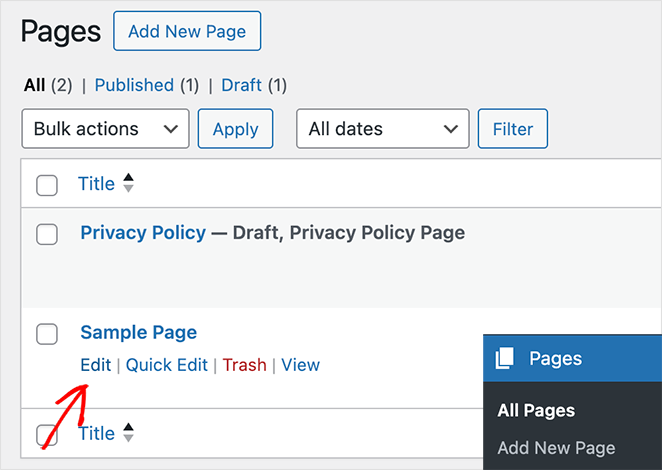
1. Ouvrez votre page dans l'éditeur WordPress
Accédez à la page que vous souhaitez protéger et cliquez sur « Modifier ».
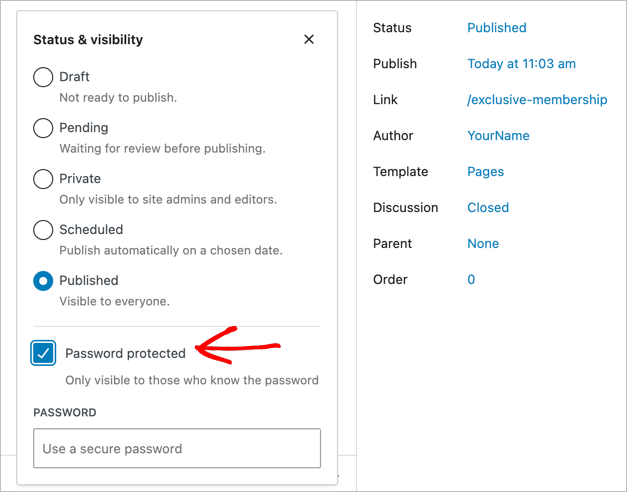
2. Trouvez les paramètres « Statut et visibilité »
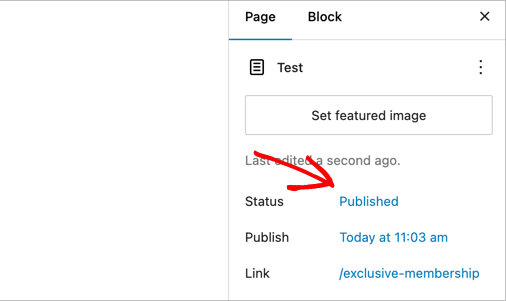
Dans la barre latérale droite, trouvez la section « Statut et visibilité ».
3. Définir la page en mode protégé par mot de passe
Cliquez sur l'option « Visibilité » et sélectionnez « Protégé par mot de passe » dans le menu déroulant.
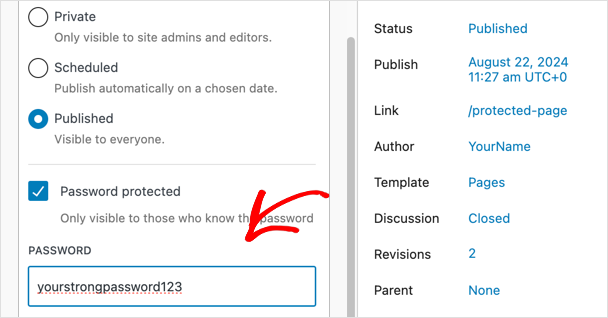
4. Choisissez un mot de passe fort
Entrez le mot de passe souhaité dans le champ prévu à cet effet. Assurez-vous qu'il soit fort et difficile à deviner.
WordPress enregistre automatiquement le mot de passe saisi dans le cookie du navigateur du visiteur, ainsi il n'aura pas besoin de le saisir à nouveau lors de visites répétées. Pour les appareils partagés ou publics, rappelez aux visiteurs de vider leurs cookies de navigateur une fois terminé.
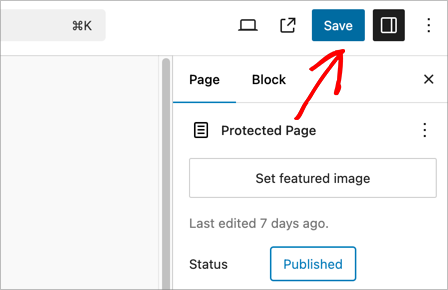
5. Mettre à jour ou publier votre page
Cliquez sur le bouton « Mettre à jour » ou « Publier » pour enregistrer vos modifications.
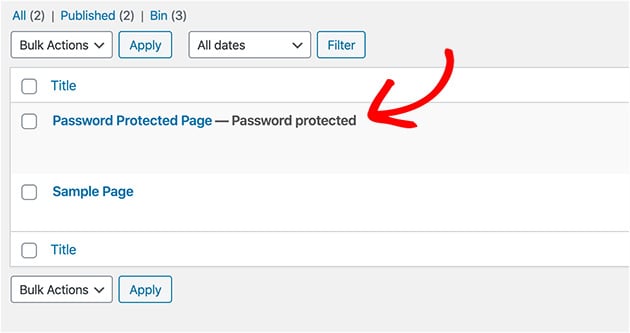
Votre page est maintenant marquée comme privée dans WordPress, vous pouvez donc facilement voir les pages protégées dans la vue liste.
Si vous souhaitez supprimer la protection par mot de passe, rétablissez le statut sur « Public ». Cette méthode fonctionne sur chaque page et article dans WordPress, y compris les types d'articles personnalisés.
Si la page contient du contenu sensible que vous ne souhaitez pas voir indexé par Google, ouvrez-la dans AIOSEO et définissez les Robots Meta sur « Ne pas indexer » dans l'onglet Avancé. Voir la FAQ ci-dessous pour les étapes complètes.
Limitations de la méthode intégrée
L'option intégrée de WordPress fonctionne bien pour des cas simples, mais elle a quelques contraintes qu'il est bon de connaître avant de s'y fier.
- Un mot de passe par page : Vous ne pouvez pas définir plusieurs mots de passe ni donner à différentes personnes des codes d'accès différents.
- Pas d'expiration du mot de passe : Le mot de passe reste actif jusqu'à ce que vous le supprimiez ou le modifiiez manuellement.
- Impossible de personnaliser le formulaire de mot de passe : L'invite par défaut de WordPress ne peut pas être stylisée sans code personnalisé. Voir comment personnaliser les pages protégées par mot de passe dans WordPress pour une alternative personnalisée.
- Les fichiers téléchargés restent exposés : Les PDF et les images intégrés à la page sont toujours accessibles via leur URL directe, même lorsque la page est verrouillée.
Si l'une de ces limitations pose problème, la méthode 2 ou un plugin dédié pourrait mieux convenir à votre situation.
Vous avez donc protégé votre page par mot de passe. Mais que faire si vous souhaitez créer une expérience plus engageante pour les visiteurs qui n'ont pas encore obtenu l'accès ?
SeedProd vous permet de créer des pages personnalisées « Bientôt disponible » ou « En maintenance » qui sont protégées par mot de passe. Découvrons comment.
Méthode 2 : Créer une page personnalisée protégée par mot de passe avec SeedProd
(Pour les pages personnalisées et le mode « Bientôt disponible »/« En maintenance »)

SeedProd est un puissant plugin de création de sites web par glisser-déposer pour WordPress qui vous permet de créer facilement des pages « Bientôt disponible », des pages de maintenance, des pages de destination, et plus encore. C'est un constructeur par glisser-déposer, vous n'avez donc pas besoin de compétences en codage pour créer des pages magnifiques et professionnelles.
L'une de ses fonctionnalités pratiques est la possibilité de protéger ces pages par mot de passe, vous donnant ainsi plus de contrôle sur qui peut accéder à votre contenu.
1. Installer et activer SeedProd
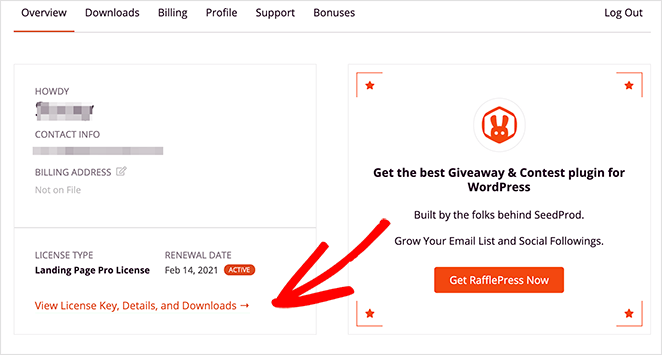
Tout d'abord, téléchargez le plugin SeedProd. Ensuite, rendez-vous dans la zone de présentation de votre compte après vous être connecté.
Cliquez maintenant sur Voir la clé de licence, les détails et les téléchargements.
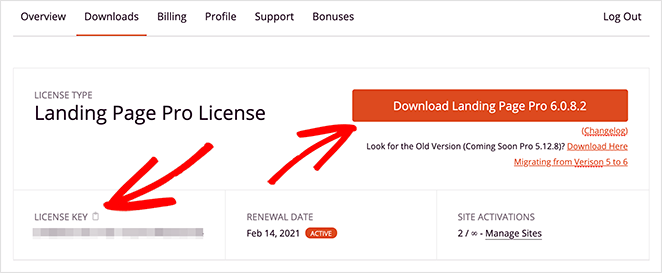
À partir d'ici, cliquez sur le bouton orange intitulé Download Landing Page Pro.
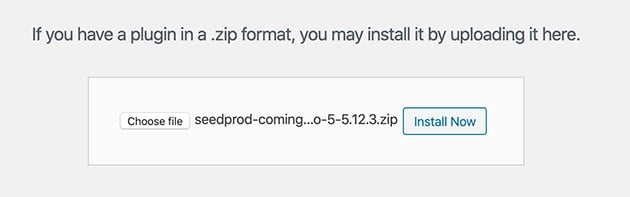
Accédez ensuite à Extensions » Ajouter dans votre tableau de bord WordPress, puis cliquez sur Téléverser une extension.
Cliquez sur Choisir un fichier pour trouver le fichier .zip que vous avez téléchargé sur votre ordinateur, puis cliquez sur Installer maintenant.
Après avoir installé l'extension, cliquez sur Activer.
2. Créez une page « Prochainement »/« Maintenance »
Pour protéger une page par mot de passe, vous devrez créer une page « Prochainement » (en construction) ou une page de maintenance.
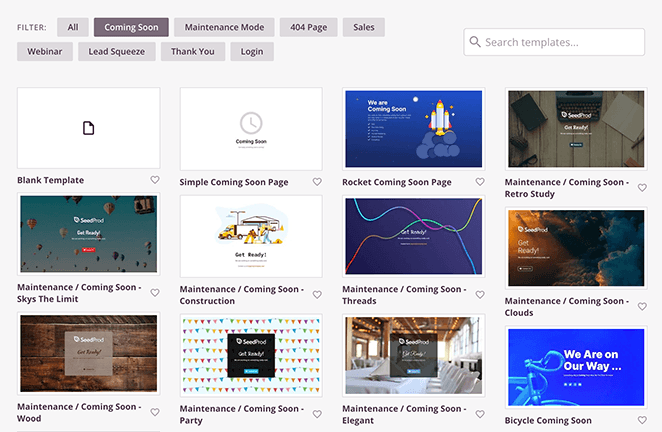
Ces pages incluent des contrôles d'accès pour protéger votre page avec un seul mot de passe. Suivez ces étapes pour créer une page « Prochainement » avec SeedProd.
3. Activez la protection par mot de passe pour votre page
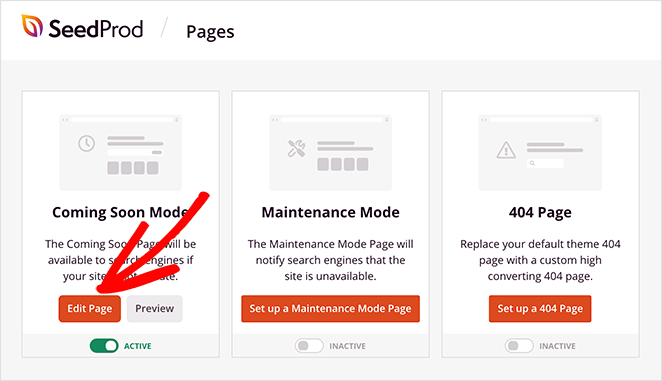
Après avoir créé votre page « Prochainement », accédez à l'aperçu de vos pages SeedProd et cliquez sur le bouton Modifier la page dans la section Mode « Prochainement ».
Cliquez sur l'onglet Paramètres de la page en haut de l'éditeur visuel de page pour voir plusieurs paramètres de configuration. Pour masquer certaines pages, cliquez sur l'option Contrôle d'accès.
Pour masquer des pages WordPress individuelles à la place, faites défiler jusqu'à la section Inclure/Exclure les URL.
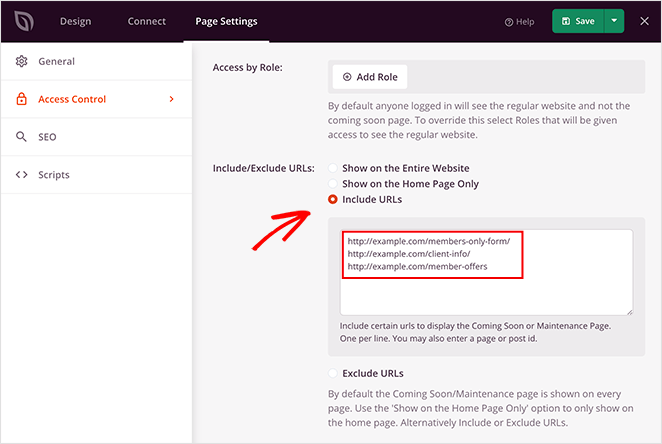
Dans cette section, cliquez sur le bouton radio Inclure les URL, puis entrez l'URL de chaque page que vous souhaitez protéger dans la zone prévue à cet effet. Vous devez entrer chaque URL sur une nouvelle ligne. Vous pouvez également ajouter ici les URL des articles WordPress individuels.
Lorsque vous avez terminé, cliquez sur le bouton Enregistrer les modifications.
Configurations SeedProd optionnelles
Le panneau Contrôle d'accès dispose d'une option qui vous permet de contourner la page restreinte.
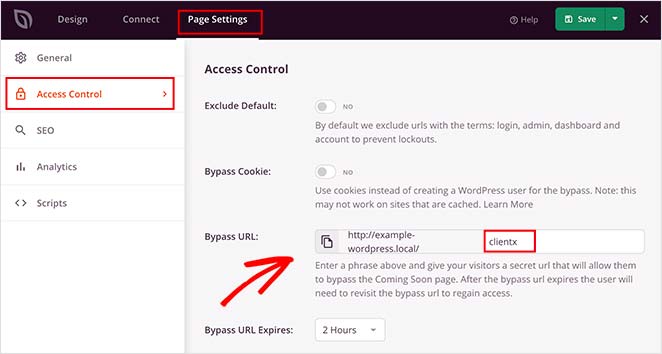
Ici, vous pouvez ajouter un mot de passe sécurisé.
Cette option rend votre page WordPress accessible uniquement via un lien que vous donnez aux visiteurs, ce qui ignore la page « prochainement ». Si vous oubliez votre mot de passe, vous pouvez jeter un coup d'œil rapide à cette page pour vous rafraîchir la mémoire.
Il est également possible d'ajouter les adresses IP de visiteurs spécifiques dans la section Accès IP. Cela permet à toute personne possédant cette IP de contourner votre page « prochainement ».
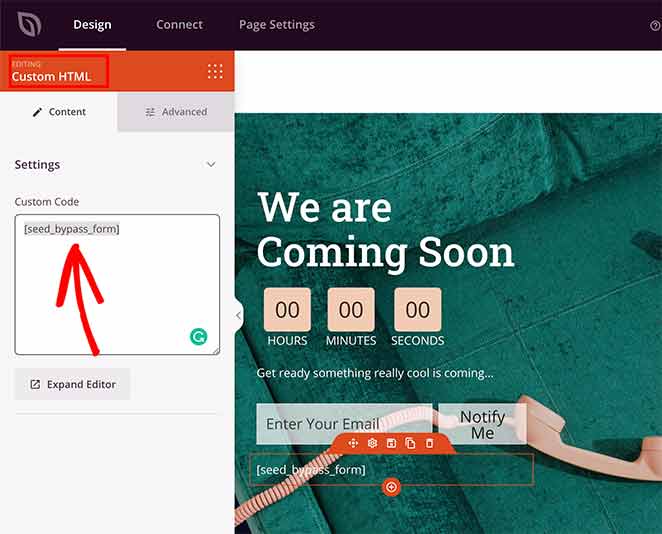
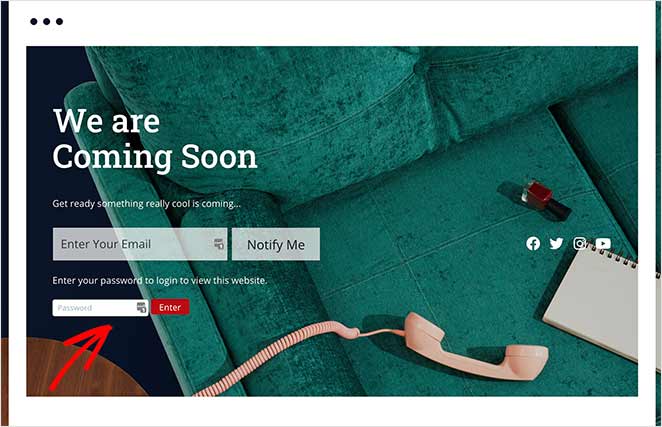
Dans le bloc, tapez seed_bypass_form entre crochets [ ] et enregistrez vos modifications. Le formulaire de connexion ne s'affichera pas dans l'aperçu du constructeur de page.
Pour le voir, vous devrez visiter cette page spécifique sur le front-end de votre site.
4. Enregistrez et activez le mode « Prochainement »/« Maintenance »
N'oubliez pas d'enregistrer vos modifications avant de quitter cette page. Et si vous ne l'avez pas encore fait, vous devrez activer votre page « Prochainement » depuis le tableau de bord.
Accédez à SeedProd » Pages depuis votre panneau d'administration WordPress pour voir les différents modes de page et pages de destination qui vous sont disponibles.
Sous la section Mode « Prochainement », cliquez sur le curseur pour passer de « Inactif » à Actif.
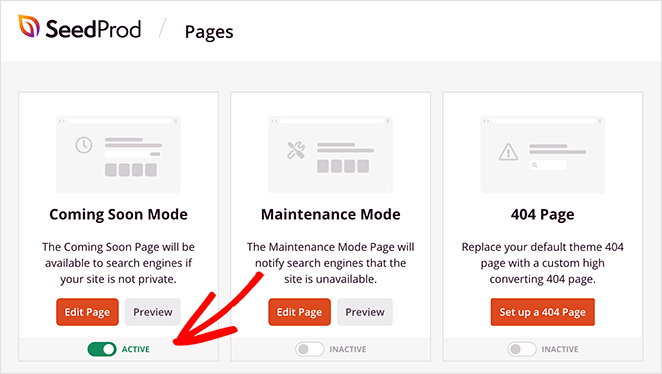
Vous avez maintenant activé la protection par mot de passe pour des pages spécifiques de votre site Web.
Méthode 3 : Ajouter plusieurs mots de passe avec PPWP
Si la méthode intégrée de WordPress est trop limitée, PPWP (Password Protect WordPress Pages) mérite d'être examinée. Elle compte plus de 30 000 installations actives et ajoute des fonctionnalités que l'option native n'a pas, notamment plusieurs mots de passe par page, l'expiration des mots de passe et un formulaire de mot de passe personnalisable.
Pour l'installer, accédez à Extensions » Ajouter dans votre tableau de bord WordPress et recherchez « PPWP ». Installez-la et activez-la.
L'écran de modification de chaque page obtient un nouveau panneau de protection par mot de passe dans la barre latérale où vous pouvez ajouter des mots de passe directement, sans toucher à une page de paramètres distincte.
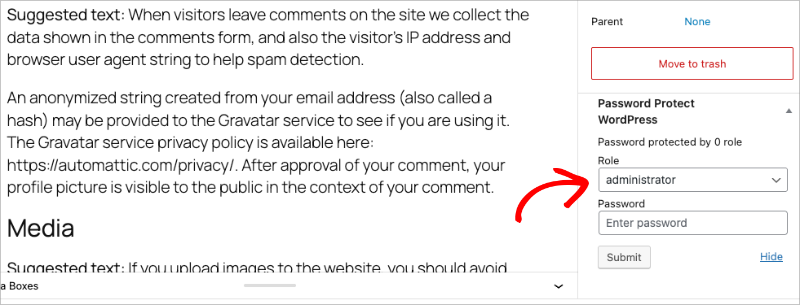
C'est le bon choix lorsque vous devez donner à différentes personnes des codes d'accès différents, définir un mot de passe qui expire après une date définie, ou remplacer le formulaire de mot de passe WordPress par défaut par quelque chose qui correspond au design de votre site.
Méthode 4 : Comment sécuriser des fichiers dans une page protégée par mot de passe
Vous vous demandez peut-être : « Puis-je protéger un fichier PDF par mot de passe ? » La réponse est oui. Cette méthode consiste à télécharger le fichier dans votre bibliothèque de médias WordPress et à l'intégrer dans une page protégée par mot de passe.
1. Téléchargez votre fichier
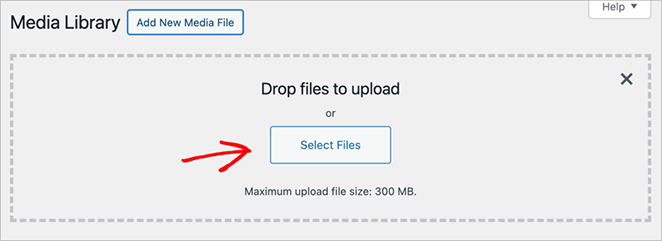
Tout d'abord, allez dans Médiathèque » Ajouter dans votre tableau de bord WordPress et téléchargez le fichier (PDF, document, etc.) que vous souhaitez protéger.
2. Créez ou modifiez une page
Créez une nouvelle page ou modifiez-en une existante où vous souhaitez intégrer le fichier protégé.
Ensuite, insérez le fichier dans le contenu de la page. Vous pouvez le faire en cliquant sur le bouton « Ajouter un média » et en sélectionnant votre fichier téléchargé, ou en créant un lien direct vers l'URL du fichier.
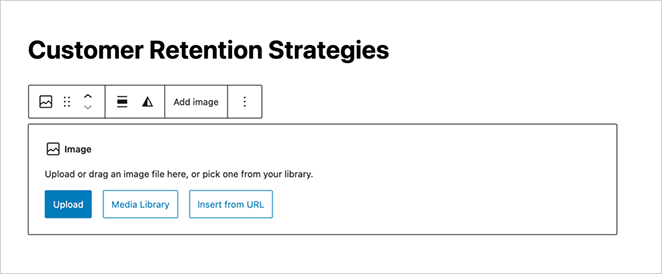
3. Verrouillez la page avec un mot de passe
Suivez les étapes de la méthode 1 pour protéger cette page par mot de passe. Cela protégera également efficacement le fichier intégré.
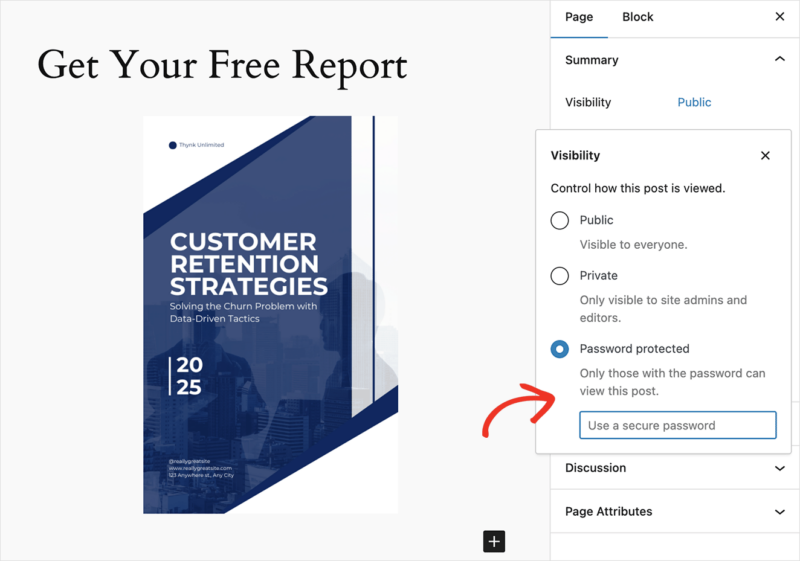
La protection par mot de passe de la page ne protège pas l'URL directe du fichier. Toute personne qui connaît ou trouve le lien direct vers le PDF ou l'image dans votre médiathèque peut y accéder sans entrer le mot de passe.
Pour les fichiers vraiment sensibles, renommez-les avec une chaîne de caractères impossible à deviner avant de les télécharger, ou utilisez un plugin dédié à la protection des téléchargements pour bloquer l'accès direct.
De cette façon, vous pouvez protéger votre PDF des personnes qui ne devraient pas y avoir accès.
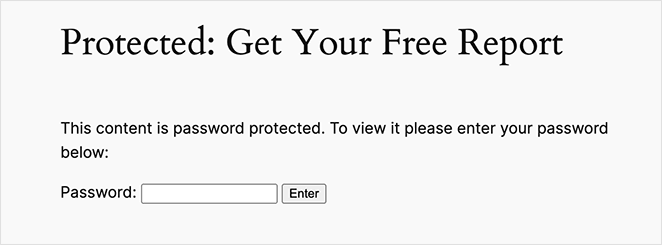
Comment protéger par mot de passe des articles, des produits et des catégories
Tout ce qui précède verrouille une seule page. Les mêmes outils s'appliquent au reste de votre contenu : articles individuels, produits WooCommerce et catégories entières.
Articles et Types d'articles personnalisés
Le réglage de visibilité intégré de la méthode 1 n'est pas limité aux pages. Ouvrez n'importe quel article, ou n'importe quel type d'article personnalisé, et définissez la Visibilité sur Protégé par mot de passe dans le même panneau Statut et visibilité.
Cela se comporte exactement comme sur une page. Un mot de passe, enregistré dans le cookie du navigateur du visiteur, sans expiration jusqu'à ce que vous le changiez.
Produits et boutiques WooCommerce
Pour une boutique WooCommerce entière, les modes « Bientôt disponible » et « Maintenance » de SeedProd sont l'option la plus propre. Les deux fonctionnent nativement avec WooCommerce, vous pouvez donc verrouiller la boutique sans ajouter un autre plugin.
Les propriétaires de boutiques ont tendance à l'utiliser de deux manières. Certains l'activent avant le lancement pour créer de l'anticipation, d'autres l'utilisent lors de changements majeurs afin que les clients ne tombent pas sur une caisse à moitié cassée.
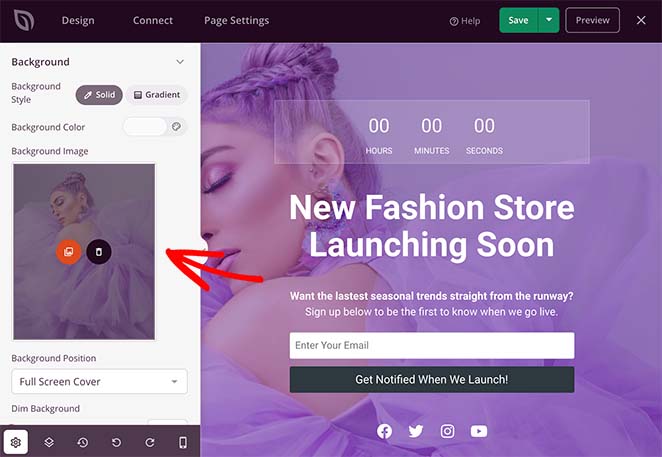
Pour le configurer, suivez notre guide pour créer une page « Bientôt disponible » pour WooCommerce. Si vous avez seulement besoin de désactiver la boutique brièvement, utilisez plutôt le mode maintenance WooCommerce.
Pour verrouiller un seul produit plutôt que toute la boutique, utilisez le réglage de visibilité intégré de la méthode 1. Chaque produit est un type d'article, il bénéficie donc de la même option « Protégé par mot de passe ».
Catégories entières
Vous pouvez verrouiller une catégorie entière derrière une seule page avec les contrôles d'accès de SeedProd, sans toucher à chaque article qu'elle contient.
Créez une page « Bientôt disponible » ou « Maintenance » comme dans la méthode 2, puis ouvrez l'onglet Paramètres de la page et activez Inclure les URL. Collez l'URL de chaque catégorie que vous souhaitez protéger, une par ligne.
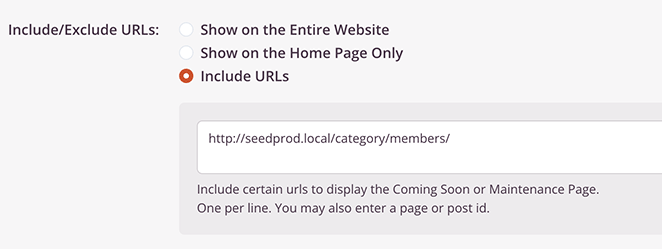
Enregistrez vos modifications, et toute personne visitant cette catégorie verra votre page protégée au lieu des articles.
Besoin de verrouiller tout votre site, pas seulement une ou deux pages ? Suivez notre guide pour protéger par mot de passe un site WordPress en cours de développement pour la procédure complète.
Dépannage des problèmes de protection par mot de passe
La protection par mot de passe est un moyen simple de contrôler l'accès aux pages WordPress, mais parfois les choses ne fonctionnent pas comme prévu.
Voici quelques problèmes courants et comment les résoudre :
- Mise en cache du navigateur : Si vous avez modifié le mot de passe ou supprimé la protection par mot de passe, mais que le comportement précédent persiste, videz le cache et les cookies de votre navigateur. Chaque navigateur a des instructions légèrement différentes, alors faites une recherche rapide (par exemple, « vider le cache dans [nom de votre navigateur] ») pour plus de détails.
- Conflits de plugins : Désactivez temporairement tous les autres plugins que vous avez installés, un par un. Après chaque désactivation, vérifiez si la protection par mot de passe fonctionne correctement. Cela permet d'isoler si un plugin interfère avec la capacité de protection par mot de passe intégrée de WordPress.
- Mot de passe incorrect : Vérifiez que vous entrez le bon mot de passe, en prêtant une attention particulière à la casse.
- Visibilité incorrecte de la page : Dans la zone « Statut et visibilité » de l'éditeur de page WordPress, assurez-vous que la visibilité est définie sur « Protégé par mot de passe ». Il est facile de la définir accidentellement sur « Privé » à la place.
- Plugins de mise en cache : Si vous utilisez un plugin de mise en cache comme WP Rocket ou W3 Total Cache, vous devrez peut-être vider son cache. Parfois, la version mise en cache de la page est servie même si vous avez mis à jour les paramètres du mot de passe.
- Fichier .htaccess corrompu (rare) : Des fichiers .htaccess mal configurés peuvent parfois interférer avec les fonctionnalités de WordPress. Vous pouvez trouver des instructions pour restaurer un fichier .htaccess standard en ligne, mais procédez avec prudence si vous n’êtes pas à l’aise avec la modification des fichiers du site.
Si aucune des solutions ci-dessus ne fonctionne, contactez votre fournisseur d’hébergement web pour obtenir des conseils supplémentaires. Il pourrait avoir des informations spécifiques à votre configuration.
FAQ sur la protection par mot de passe d’une page WordPress
Nous recevons beaucoup de questions de nos lecteurs concernant la protection par mot de passe. Ci-dessous, nous essayons d’y répondre autant que possible :
La protection par mot de passe masque-t-elle une page WordPress de Google ?
Pas entièrement. Google peut toujours explorer et indexer le titre de la page et l’URL, même lorsque la page est protégée par mot de passe. Le contenu lui-même est caché des robots d’exploration, mais la page peut toujours apparaître dans les résultats de recherche. Pour empêcher l’indexation, ouvrez la page dans AIOSEO, allez dans l’onglet Avancé et définissez les métadonnées Robots sur « No Index ». Faites cela pour toute page contenant du contenu que vous ne voulez pas que Google trouve.
Puis-je protéger par mot de passe seulement une partie d’une page WordPress ?
Pas avec le paramètre intégré de WordPress. L’option de visibilité native verrouille toute la page. Si vous avez besoin de restreindre une section plutôt que la page entière, le plugin PPWP prend en charge la protection de contenu partiel à l’aide d’un shortcode que vous pouvez ajouter directement dans l’éditeur.
La protection par mot de passe sécurisera-t-elle également les fichiers et les images de la page ?
Non. La protection par mot de passe d’une page ne bloque pas l’accès direct aux fichiers de votre médiathèque WordPress. Toute personne connaissant l’URL directe d’un PDF ou d’une image peut y accéder sans entrer le mot de passe. Pour les fichiers sensibles, renommez-les avec une chaîne de caractères indéchiffrable avant de les télécharger, ou utilisez un plugin dédié à la protection de fichiers.
Puis-je définir des mots de passe différents pour différentes pages WordPress ?
Oui. WordPress vous permet d’attribuer un mot de passe unique à chaque page ou article individuellement. Si vous avez besoin de plusieurs mots de passe pour la même page, ou de mots de passe qui expirent automatiquement, le plugin PPWP gère ces deux cas depuis l’écran de modification de chaque page.
Puis-je protéger par mot de passe tout mon site WordPress ?
Oui. Appliquez le mode « Bientôt disponible » ou « Maintenance » de SeedProd à l'ensemble de votre site, en utilisant la même approche que celle montrée ci-dessus pour une seule page. C'est le moyen le plus rapide de placer chaque page derrière un seul mot de passe pendant que vous construisez ou effectuez des modifications.
Les visiteurs ont-ils besoin d'un compte WordPress pour entrer le mot de passe ?
Non. La protection par mot de passe est distincte de l'inscription des utilisateurs. Toute personne possédant le mot de passe peut consulter le contenu sans créer de compte ni se connecter, ce qui la différencie d'un site d'adhésion.
Ensuite, d’autres façons de protéger votre site
Vous savez maintenant comment protéger par mot de passe une page WordPress à des fins de test et pour du contenu privé.
Verrouiller des pages dans WordPress est facile avec les puissants contrôles d’accès de SeedProd. De plus, le constructeur de pages par glisser-déposer vous donne un contrôle total sur la conception de votre page protégée par mot de passe, sans aucun codage requis !
Pour sécuriser le reste de votre site, consultez notre guide sur comment protéger votre site WordPress contre les pirates.
Merci de votre lecture ! Nous serions ravis d'entendre vos réflexions, alors n'hésitez pas à rejoindre la conversation sur YouTube, X et Facebook pour plus de conseils et de contenu utiles pour développer votre entreprise.




Merci
Bonjour
Je cherche à protéger une page par utilisateur, donc il s'agit d'une galerie différente pour chaque utilisateur
Ainsi, l'utilisateur 1 n'aurait accès qu'à sa propre galerie/page personnalisée
et l'utilisateur 2 n'aurait accès qu'à sa galerie
Votre système fait-il cela ?
Cordialement
Rob
Bonjour Rob. Ce n'est pas possible avec SeedProd. Vous pourriez envisager un plugin d'adhésion pour plus de contrôle. Voici quelques suggestions.
Veuillez envisager de permettre à Seedprod de protéger des pages avec plusieurs mots de passe qui expirent soit après utilisation, soit après quelques jours. :)
Merci pour la suggestion Nana. Je vais certainement soumettre cela comme demande de fonctionnalité pour vous.