

Kurz gesagt: Facebook-Events auf WordPress einbetten. Vier Methoden, jede für einen anderen Anwendungsfall geeignet.
- SeedProd – Fügen Sie den Facebook-Seiten-Block zu jeder Landingpage hinzu. Keine Zugriffstoken oder Entwicklereinrichtung erforderlich.
- Smash Balloon – Zeigen Sie einen vollständigen Eventkalender-Feed überall auf Ihrer Website an. Am besten für laufende Veranstaltungen mit vollständiger Designkontrolle.
- iCal Sync – Kopieren Sie die iCal-URL Ihres Events in jedes WordPress-Kalender-Plugin. Am besten für die kalenderweite Integration auf der Website.
- Manuelles HTML – Generieren Sie Code aus dem Seiten-Plugin von Facebook und fügen Sie ihn in einen benutzerdefinierten HTML-Block ein. Kostenlos, aber mit begrenzten Designoptionen.
Ich stieß auf ein großes Problem bei der Bewerbung von Veranstaltungen auf Facebook. Die Leute auf meiner Website hatten keine Ahnung, dass diese Veranstaltungen existierten. Sie besuchten meine Seite nicht regelmäßig und ich wollte sie nicht woanders hinschicken, nur um zuzusagen.
Also suchte ich nach einer Möglichkeit, Facebook-Events direkt in WordPress einzubetten. So konnten Besucher sehen, was ansteht, mit einem Klick teilnehmen und die ganze Zeit auf meiner Website bleiben.
Wenn Sie selbst herausgefunden haben, wie das geht, sind Sie hier genau richtig. In diesem Leitfaden zeige ich Ihnen vier Möglichkeiten, Ihre Facebook-Events auf einer WordPress-Website anzuzeigen.
So betten Sie Facebook-Veranstaltungen auf WordPress ein
In diesem Leitfaden teile ich drei Möglichkeiten, Facebook-Events auf Ihrer WordPress-Website zu platzieren:
- Erstellen Sie eine spezielle Event-Seite. Dies ist wie ein VIP-Bereich auf Ihrer Website nur für Veranstaltungen. Es hilft den Leuten, Veranstaltungen leicht zu finden und sich anzumelden.
- Verwenden Sie ein Tool, das Ihre Events von Facebook abruft. Dieses Tool fungiert als Brücke und zieht Ihre Events auf jede Seite Ihrer Website. Außerdem können Sie das Aussehen der Events ändern, um sie an Ihren Stil anzupassen.
- Fügen Sie einen Code-Schnipsel hinzu (wenn Sie damit vertraut sind). Facebook ermöglicht es Ihnen, ein Stück Code zu erhalten, um Events direkt auf Ihrer Website anzuzeigen. Dies ist der einfachste Weg, aber er bietet Ihnen nicht viele Möglichkeiten, sie gut aussehen zu lassen.
- Synchronisieren Sie Ihre Events über eine iCal-URL. Kopieren Sie den iCal-Link von jedem Facebook-Event und fügen Sie ihn in ein WordPress-Kalender-Plugin ein. Ihre Website wird automatisch aktualisiert, wenn Sie neue Events auf Facebook hinzufügen.
Woher wissen Sie, welche Einbettungsmethode für Sie am besten geeignet ist?
Sie sind sich nicht sicher, wie Sie einen Facebook-Events-Feed am besten auf Ihrer Website anzeigen können? Hier ist eine Vergleichstabelle, die Ihnen hilft, die richtige Methode zum Einbetten eines Facebook-Kalenders in WordPress auszuwählen.
| Methode | Funktionen | Benutzerfreundlichkeit | Preise | Mobilfreundlich | Kostenlose Version? | Grenzen der kostenlosen Version |
|---|---|---|---|---|---|---|
| SeedProd | Landingpages, Facebook-Integrationen | Einfach | Kostenpflichtig/Kostenlos | Ja | Ja | Begrenzte Funktionen, Facebook-Seiten-Block erfordert kostenpflichtige Version |
| Smash Balloon | Anpassbare Facebook-Feeds | Mittelmäßig | Kostenpflichtig/Kostenlos | Ja | Ja | Begrenzte Funktionen |
| Manuelle Einbettung (Code) | Grundlegende Eventanzeige | Schwierig | Kostenlos | Vielleicht | Ja | Sehr begrenzt, erfordert Programmierkenntnisse |
| iCal-Synchronisierung | Synchronisierung mit jedem Kalender-Plugin | Einfach | Kostenlos | Abhängig vom Kalender-Plugin | Ja | Erfordert ein kompatibles Kalender-Plugin |
Legen wir jetzt los.
Wie bettet man Facebook-Events mit SeedProd ein?

SeedProd ist ein Drag-and-Drop-Website-Builder für WordPress mit Funktionen für den „Coming Soon“- und Wartungsmodus. Sie können dieses Plugin verwenden, um hochkonvertierende Landing Pages zu erstellen, ohne CSS- und PHP-Code schreiben oder einen Entwickler beauftragen zu müssen.
Im Gegensatz zu den meisten Einbettungsmethoden benötigt der Facebook Page-Block von SeedProd keinen Zugriffstoken, keine App-ID und keine Entwicklereinrichtung.
Sie können nicht nur Hunderte von Vorlagen sofort verwenden, sondern SeedProd enthält auch Inhaltsblöcke, mit denen Sie Social-Media-Inhalte wie Ihren Facebook-Eventkalender, den Live-Seitenfeed und RSVP-Tools ohne Code einbetten können.
Am bemerkenswertesten sind die Facebook-Blöcke, mit denen Sie Social-Media-Inhalte einbetten können, darunter:
- Facebook Like-Button
- Facebook Kommentare
- Facebook-Seite
- Facebook Einbettung
Wir verwenden den Facebook Page-Block, um Events direkt auf Ihrer Landing Page für diese Methode hinzuzufügen. Das Beste daran ist, dass keine Zugriffstoken, Shortcodes oder IDs kopiert und eingefügt werden müssen.
1. SeedProd installieren und aktivieren
Installieren und aktivieren Sie zunächst das SeedProd-Plugin. Für diese Anleitung verwenden wir SeedProd Pro, da es die erweiterten Facebook-Blöcke enthält, die wir benötigen.
2. Erstellen Sie eine WordPress-Landing Page
Nach der Installation von SeedProd auf Ihrer WordPress-Website müssen Sie eine neue Landing Page erstellen.
Glücklicherweise können Sie dieser Schritt-für-Schritt-Anleitung zum Erstellen einer Landing Page in WordPress folgen, um schnell loszulegen. Oder Sie können dieser Anleitung folgen, um speziell eine Event-Landing Page zu erstellen.
Sobald Ihr Landing Page-Design fertig ist, navigieren Sie zu SeedProd » Seiten und klicken Sie auf Bearbeiten bei der Landing Page, die Sie nach unserem Tutorial erstellt haben.
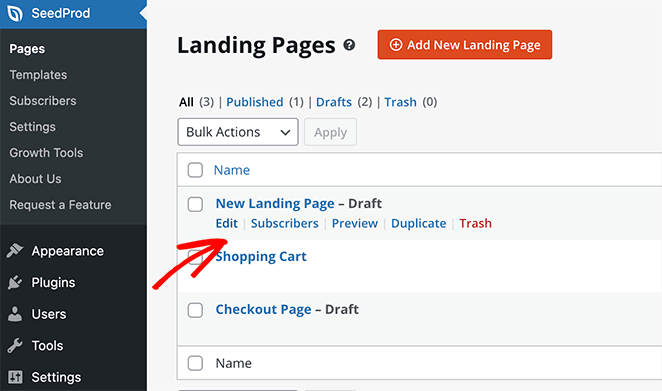
Dadurch wird der visuelle Editor von SeedProd geöffnet, in dem Sie Ihre Events hinzufügen können.
3. Fügen Sie den Facebook Page-Block hinzu
Finden Sie als Nächstes eine Stelle auf Ihrer Seite, an der Sie Ihren Facebook Events-Kalender anzeigen möchten. Gehen Sie dann zum Abschnitt Erweiterte Blöcke auf der rechten Seite und suchen Sie den Facebook Page-Block.
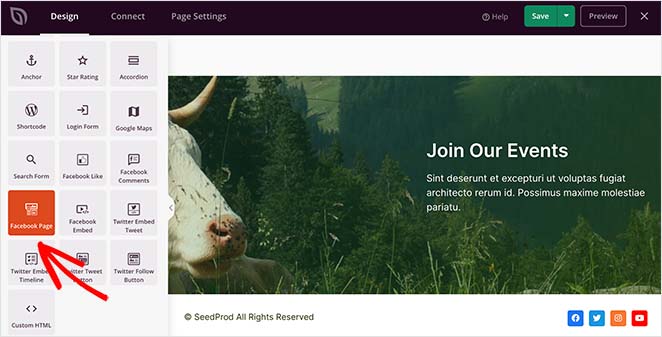
Um diesen Block zu Ihrer Seite hinzuzufügen, ziehen Sie ihn von links in Ihre Vorschau.
Fügen Sie dann in den Inhaltseinstellungen des Facebook Page-Blocks die URL Ihrer Seite ein. So ruft SeedProd Ihren öffentlichen Facebook-Event-Feed ab und zeigt ihn direkt in Ihrem WordPress-Layout an.
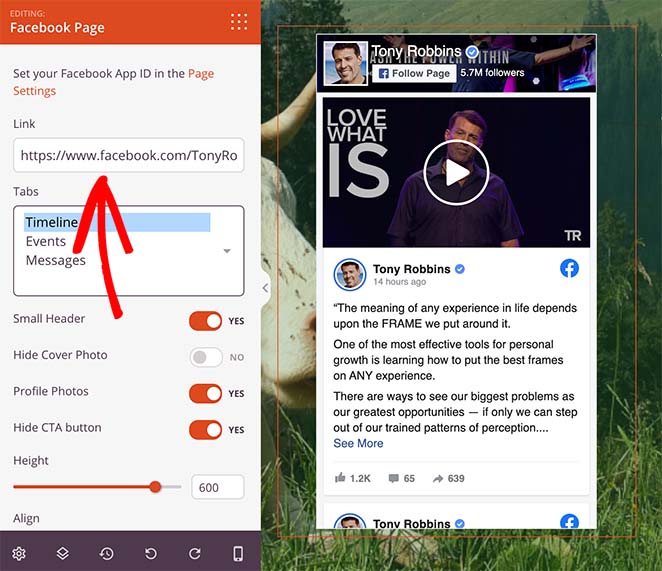
Standardmäßig zeigt SeedProd automatisch Ihre Facebook-Seiten-Timeline an. Um stattdessen Ihre Events anzuzeigen, klicken Sie unter der Überschrift Tabs auf die Option Events.
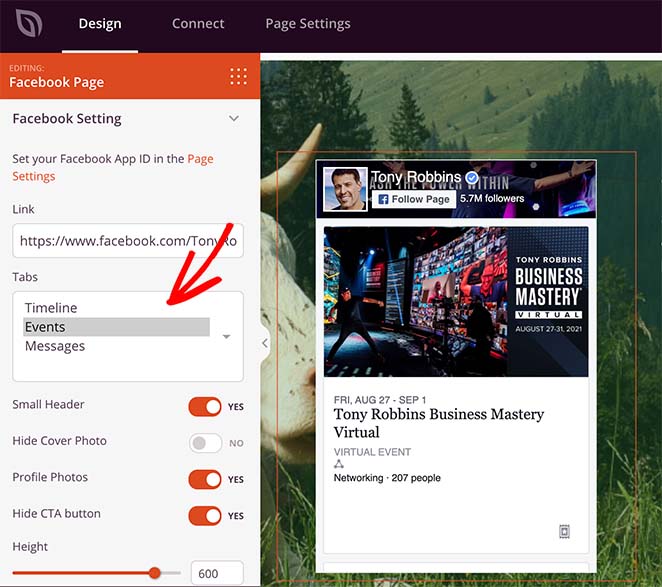
Im selben Bereich können Sie auch den Header-Stil ändern, Ihr Titelbild anzeigen oder ausblenden, die Ausrichtung anpassen und vieles mehr.
Und wenn Sie das Engagement Ihrer Facebook-Seite erhöhen möchten, können Sie den Facebook-Einbettungsblock verwenden, um einen Beitrag, ein Facebook-Video oder einen Kommentar direkt neben Ihrem Veranstaltungsplan einzubetten.
4. Veröffentlichen Sie Ihre Landingpage
Alles, was Sie tun müssen, ist, auf den Dropdown-Pfeil neben der Schaltfläche "Speichern" in der oberen rechten Ecke zu klicken und dann auf Veröffentlichen zu klicken.
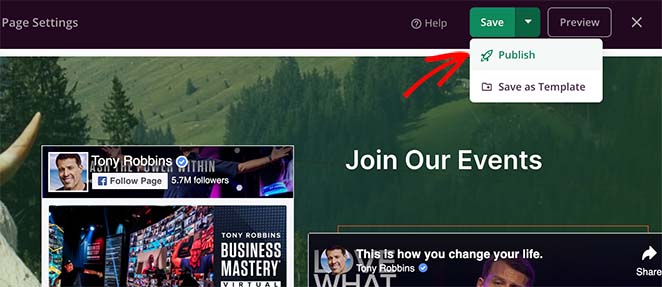
Wenn Sie dann auf Vorschau klicken, sehen Sie Ihren Veranstaltungskalender live auf Ihrer Landingpage.
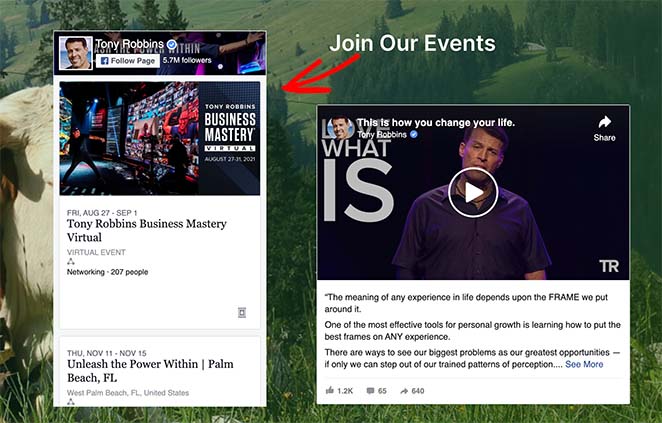
Das war's. Website-Besucher können Ihre Facebook-Veranstaltungen jetzt auf Ihrer Landingpage sehen.
Wenn Sie jedoch einen vollständigen Facebook-Veranstaltungsfeed anzeigen möchten, empfehlen wir die folgende Methode.
Wie zeigt man einen vollständigen Facebook-Veranstaltungskalender in WordPress an?
Sie müssen das Plugin Smash Balloon Custom Facebook Feed Pro installieren und aktivieren. Hilfe zu diesem Schritt finden Sie in dieser Schritt-für-Schritt-Anleitung zum Installieren eines WordPress-Plugins.
1. Erstellen Sie einen neuen Facebook-Feed
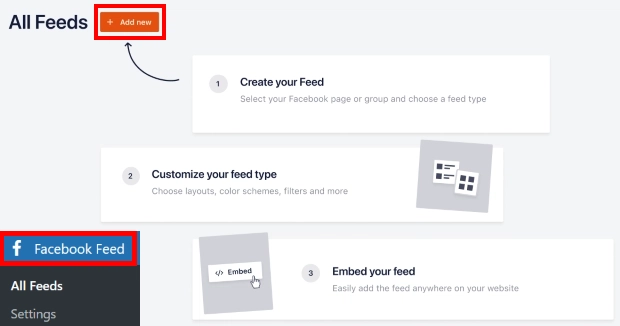
Nachdem Sie das Plugin installiert und aktiviert haben, gehen Sie in Ihrem WordPress-Dashboard zu Facebook Feed » Alle Feeds. Klicken Sie dort auf die Schaltfläche Neu hinzufügen, um mit der Erstellung Ihres Veranstaltungsfeeds zu beginnen.
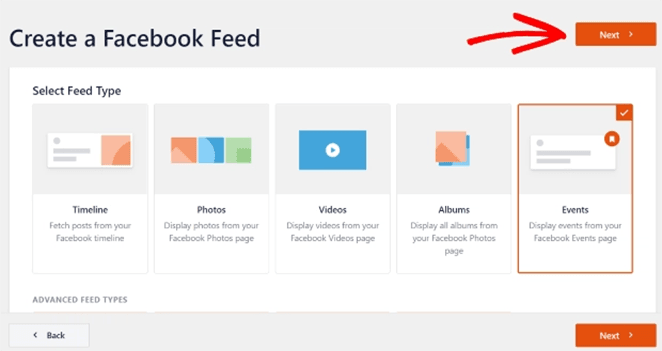
Auf der folgenden Seite sehen Sie 9 verschiedene Arten von Facebook-Feeds, die Sie zu Ihrer Website hinzufügen können, darunter:
- Zeitplan
- Fotos
- Videos
- Alben
- Ereignisse
- Bewertungen
- Und mehr
Wählen Sie die Option Veranstaltungen und klicken Sie auf die Schaltfläche Weiter, um fortzufahren.
2. Wählen Sie eine Facebook-Seitenquelle
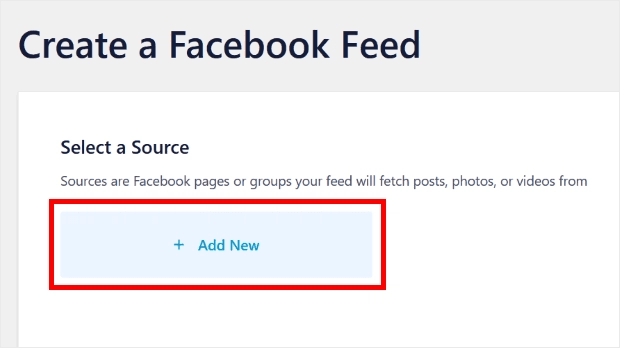
Nachdem Sie einen Feed-Typ ausgewählt haben, ist es an der Zeit, eine Facebook-Seitenquelle auszuwählen. Dies kann eine Facebook-Gruppe oder eine Seite sein, auf der Sie die Veranstaltungen Ihres Unternehmens posten.
Um eine Quelle hinzuzufügen, klicken Sie auf die Schaltfläche Neu hinzufügen.
Dies öffnet ein Popup, in dem Sie nach Ihrer Facebook-Seiten-ID und Ihrem Event-Zugriffstoken gefragt werden.
Wenn Sie nicht sicher sind, wie Sie die App-ID und das App-Secret-Token für Ihre Seite finden, folgen Sie diesen Anweisungen.
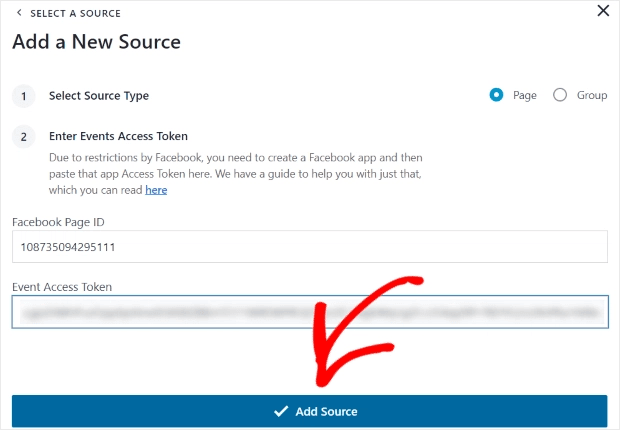
Nachdem Sie Ihre Facebook-App-Details eingegeben haben, klicken Sie auf die Schaltfläche Quelle hinzufügen.
Auf dem nächsten Bildschirm sehen Sie Ihre neu hinzugefügte Facebook-Seite. Wählen Sie einfach diese Seite aus und klicken Sie auf Weiter, um fortzufahren.
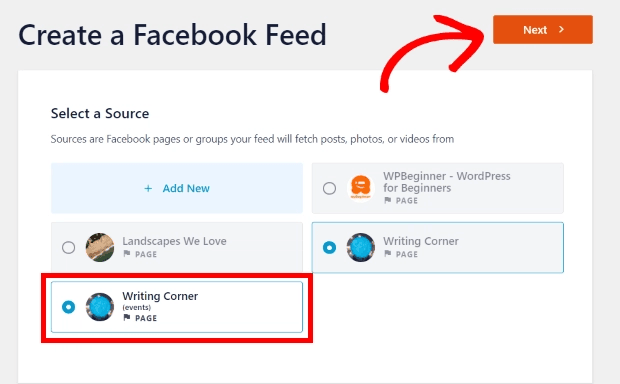
3. Passen Sie Ihr Facebook-Veranstaltungskalender-Layout an
Jetzt können Sie mit der Anpassung Ihrer Veranstaltungen beginnen. Die Anpassungsoptionen befinden sich auf der linken Seite, während eine Vorschau Ihres Feeds auf der rechten Seite angezeigt wird.
Die Anpassungsoptionen ermöglichen es Ihnen, den Feed-Typ, das Layout, die Farben, das Header-Design, das Post-Design und mehr zu ändern.
Wählen Sie zuerst die Option Feed-Layout auf der linken Seite.
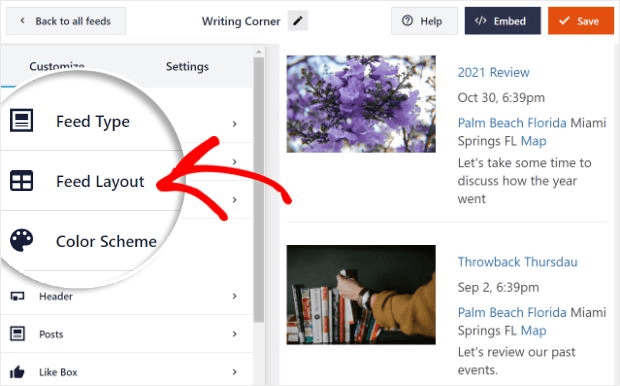
Diese Option bietet 3 verschiedene Einstellungen, darunter Listen-, Kachel- und Karussell-Layouts.
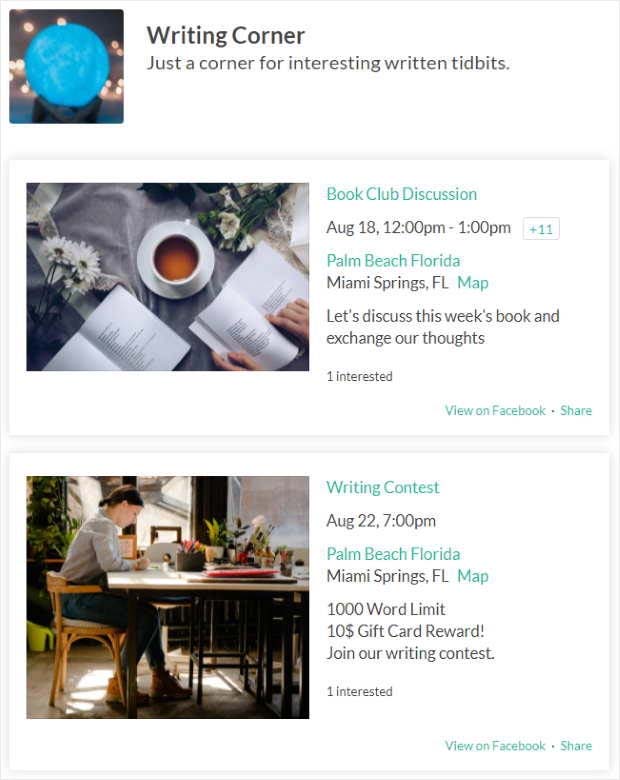
Um Veranstaltungen nacheinander anzuzeigen, wählen Sie die Option Listen-Layout.
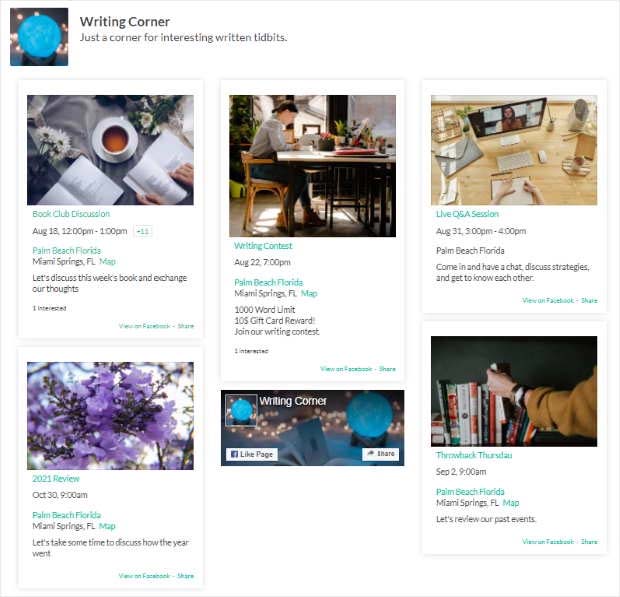
Sie können auch die Kachel-Option auswählen, wenn Sie Ihre Veranstaltungen lieber in einem mehrspaltigen Layout anzeigen möchten.
Zuletzt gibt es die Karussell-Option, mit der Sie Ihre Veranstaltungen in einem beeindruckenden Bild-Slider anzeigen können.
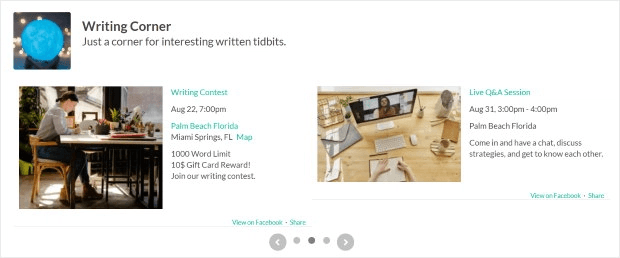
Wählen Sie ein Layout, das am besten zu Ihrer Website passt. Klicken Sie dann erneut auf die Schaltfläche Anpassen, um zu den vorherigen Einstellungen zurückzukehren.
4. Passen Sie das Farbschema Ihres Facebook-Veranstaltungsfeeds an
Wenn Sie die Farbe Ihres Feeds ändern möchten, klicken Sie auf die Überschrift Farbschema. In diesem Bereich können Sie aus 4 verschiedenen Farboptionen wählen, wie z. B.:
- Vom Theme erben: Kopieren Sie das Farbschema Ihrer Website
- Hell: Heller Hintergrund mit dunkelgrauem Text
- Dunkel: Dunkler Hintergrund mit hellgrauem Text
- Benutzerdefiniert: Geben Sie alle Farben selbst ein
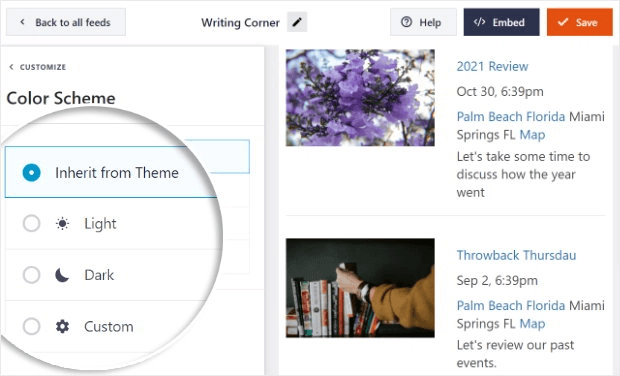
Anschließend können Sie weitere Einstellungen anpassen, einschließlich des Header-Designs, der Feed-Größe, der Ränder und mehr.
Wenn Sie mit dem Aussehen zufrieden sind, klicken Sie auf die Schaltfläche Speichern.
5. Veranstaltungen von Facebook auf WordPress-Seiten anzeigen
Jetzt sind Sie bereit, Facebook-Veranstaltungen auf Ihrer WordPress-Website einzubetten, und Smash Balloon ermöglicht Ihnen dies auf zwei Arten.
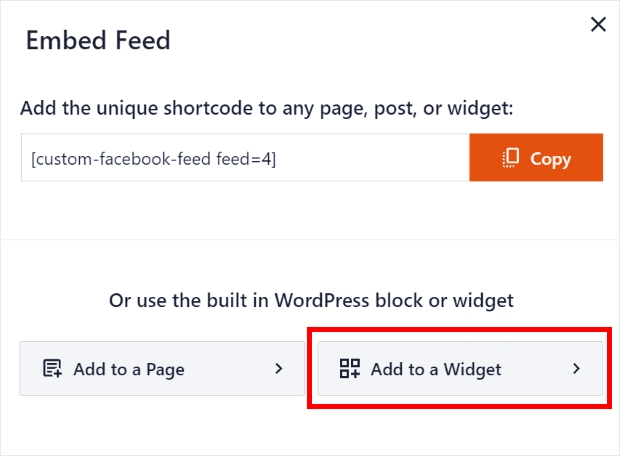
Klicken Sie zuerst auf die Schaltfläche Einbetten in der oberen rechten Ecke. Dies öffnet ein Popup mit verschiedenen Veröffentlichungsoptionen.
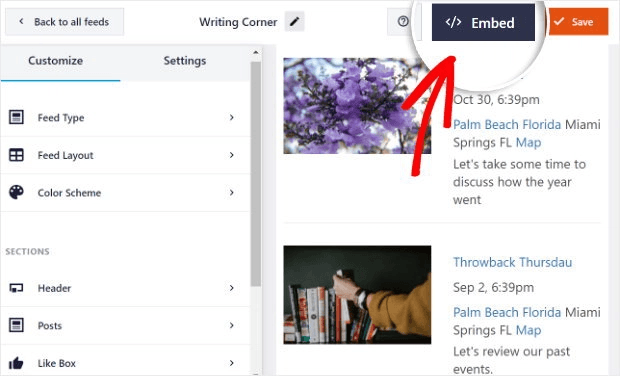
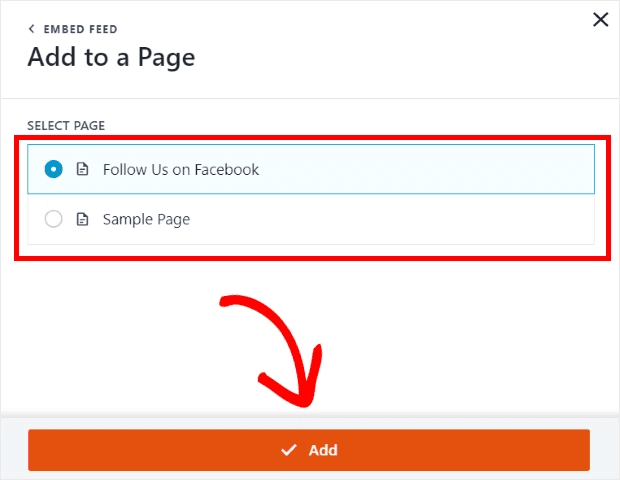
Klicken Sie auf die Schaltfläche Zu einer Seite hinzufügen, um Ihre Facebook-Veranstaltungen in eine normale WordPress-Seite einzubetten.
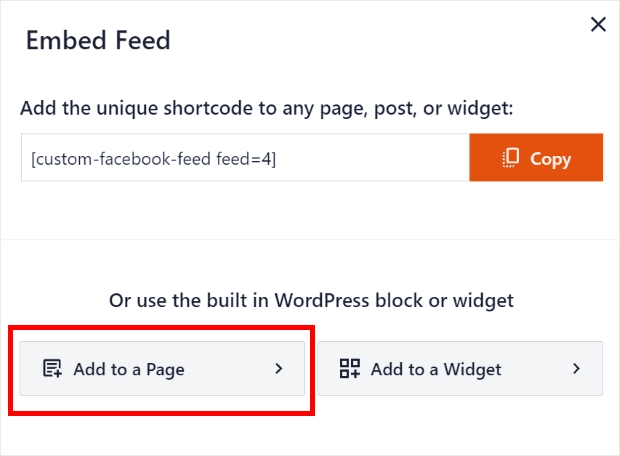
Von dort aus können Sie jede Seite auf Ihrer Website aus der Liste auswählen und auf die Schaltfläche Hinzufügen klicken.
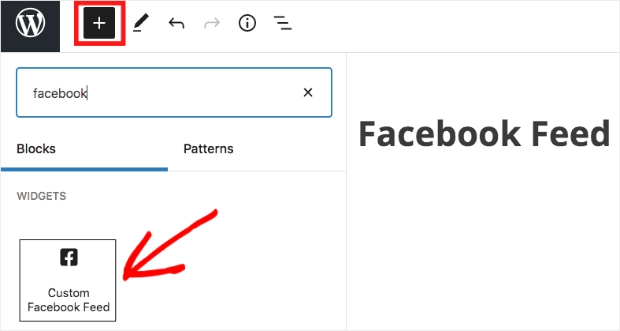
Wenn Sie auf diese Option klicken, gelangen Sie zum Bearbeitungsbildschirm Ihrer ausgewählten Seite. Klicken Sie dort auf das Plus-Symbol (+) und wählen Sie das Widget Benutzerdefinierter Facebook-Feed aus.
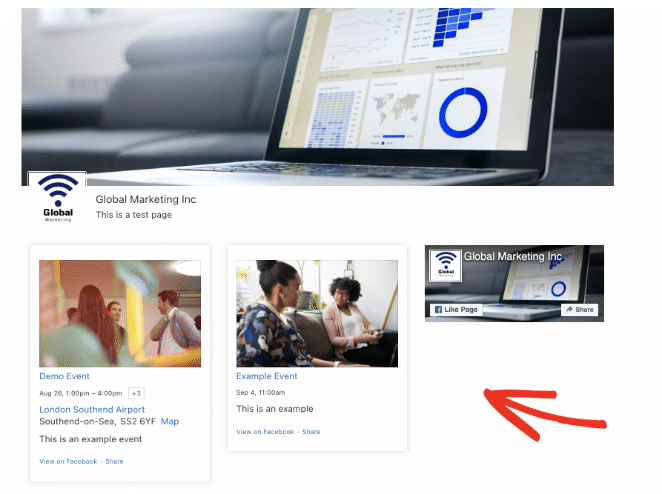
Wenn Sie die Seite aktualisieren oder veröffentlichen, können Sie sie in der Vorschau anzeigen, um zu sehen, wie Ihre Veranstaltungen aussehen.
6. Facebook-Veranstaltungen zu WordPress-Seitenleisten hinzufügen
Wenn Sie Ihren Feed lieber zu einem Seitenleistenbereich hinzufügen möchten, klicken Sie einfach im Einbettungsfenster auf die Schaltfläche Zu einem Widget hinzufügen.
Wenn Sie auf diese Option klicken, gelangen Sie zur Widgets-Seite, auf der Sie eine Seitenleiste auswählen können, um Ihre Veranstaltungen anzuzeigen.
Nachdem Sie eine Seitenleiste ausgewählt haben, klicken Sie auf das Plus-Symbol (+) , um ein neues Widget hinzuzufügen, und wählen Sie das Widget Benutzerdefinierter Facebook-Feed aus.
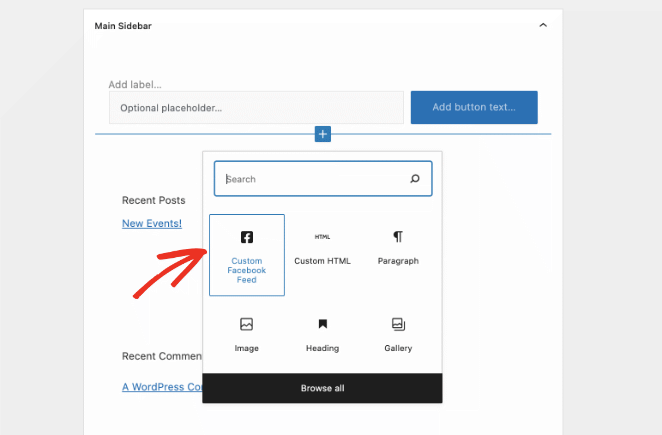
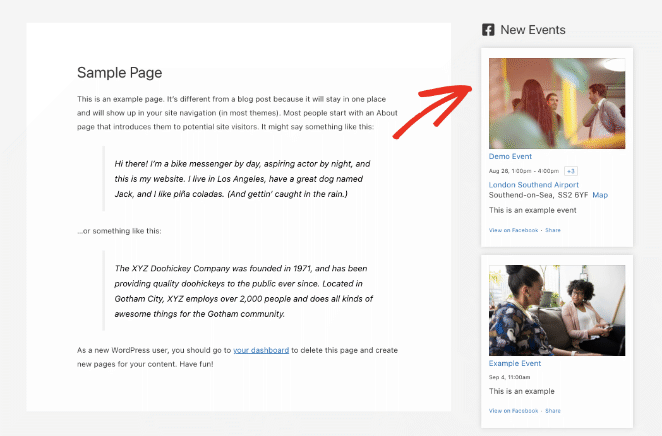
Sobald Sie dies getan haben, können Sie Ihre Website in der Vorschau anzeigen und Ihre Facebook-Veranstaltungen im Seitenleistenbereich Ihrer Website sehen.
Können Facebook-Veranstaltungen ohne Plugin eingebettet werden?
Wenn Sie kein Fan von zu vielen WordPress-Plugins auf Ihrer Website sind, können Sie Facebook-Veranstaltungen auch ohne Plugin auf WordPress anzeigen.
Diese Methode erfordert jedoch, dass Sie Code zu Ihrer Website hinzufügen. Daher ist sie für Anfänger nicht zu empfehlen. Sie bietet auch nicht viel Kontrolle darüber, wie Ihre Veranstaltungen aussehen.
1. Besuchen Sie die Website des Facebook Page Plugin.
Bevor Sie sich auf diese Methode für einen Kunden oder eine Live-Website verlassen, testen Sie sie zuerst mit Ihrer eigenen Facebook-Seite. Der Events-Tab des Page Plugins von Facebook hat seit 2016 eine inkonsistente Unterstützung, und die Ergebnisse variieren je nach Konto. Wenn Events nicht angezeigt werden, verwenden Sie stattdessen die oben genannten Smash Balloon- oder SeedProd-Methoden.
Gehen Sie also zum Facebook Plugin-Tool und fügen Sie die URL Ihrer Facebook-Seite ein.
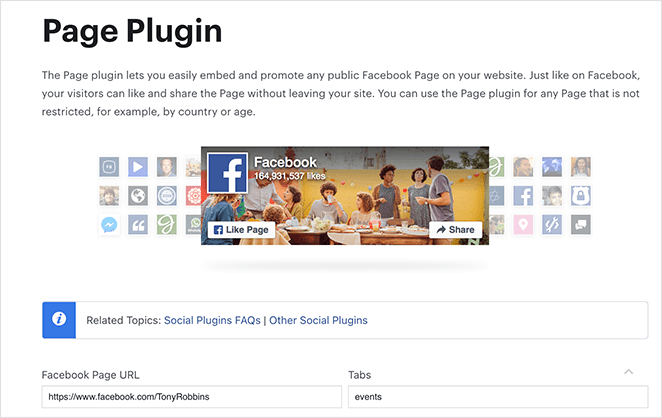
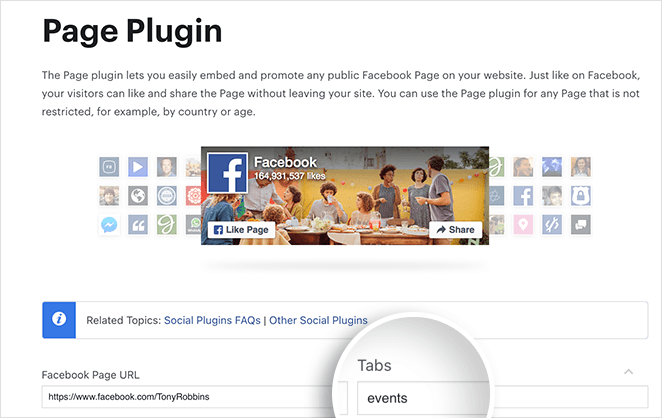
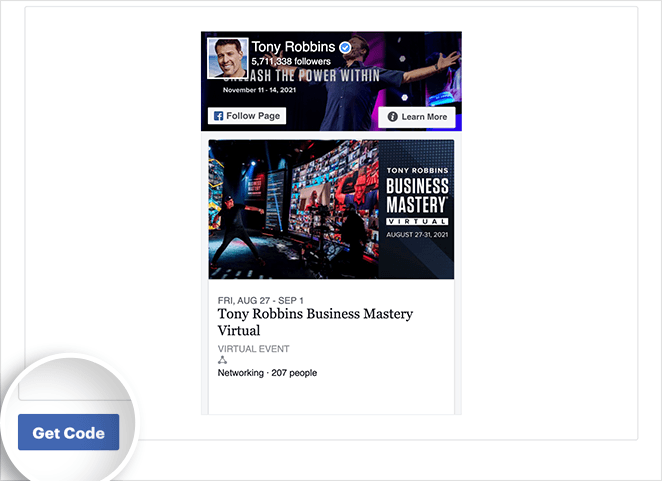
Nachdem Sie Ihre Facebook-Seiten-URL eingegeben haben, zeigt das Tool eine Vorschau Ihrer Timeline an. Da wir Ihre Facebook-Events anzeigen möchten, löschen Sie das Wort „timeline“ im Feld „Tabs“ und geben Sie „events“ ein.
2. Generieren Sie Ihren Facebook Event Embed-Code
Das Vorschaufenster zeigt nun eine Liste der Events Ihrer Seite an. Um den Code zu erhalten, klicken Sie auf die Schaltfläche Get Code unter der Vorschau.
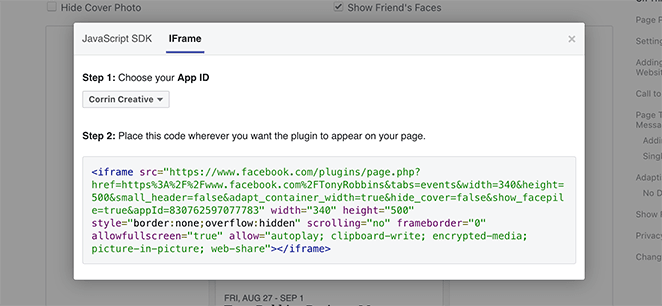
Wenn Sie auf die Schaltfläche „Get Code“ klicken, öffnet sich ein Lightbox-Popup mit 2 Tabs: JavaScript SDK und IFrame. Klicken Sie auf den IFrame-Tab und kopieren Sie dann den Embed-Code in Ihre Zwischenablage.
3. Betten Sie den Facebook Events Code in WordPress ein
Gehen Sie als Nächstes zu Ihrer WordPress-Website und bearbeiten Sie den Beitrag oder die Seite, auf der Sie Ihre Facebook Events anzeigen möchten.
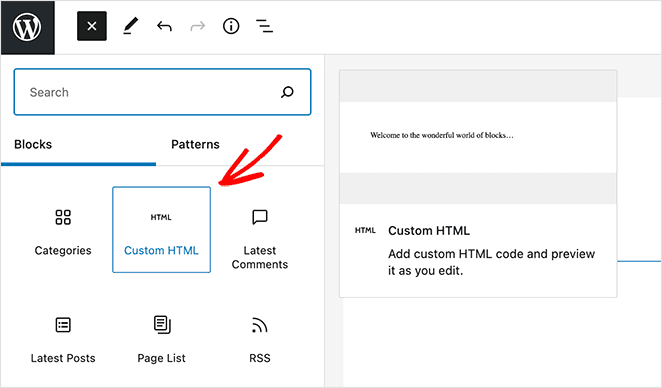
Klicken Sie auf dem Beitrags- oder Seitenbearbeitungsbildschirm auf das Pluszeichen (+) und suchen Sie den WordPress-Block Custom HTML.
Klicken Sie nun in den HTML-Block und fügen Sie den Embed-Code aus dem Facebook Page Plugin-Tool ein.
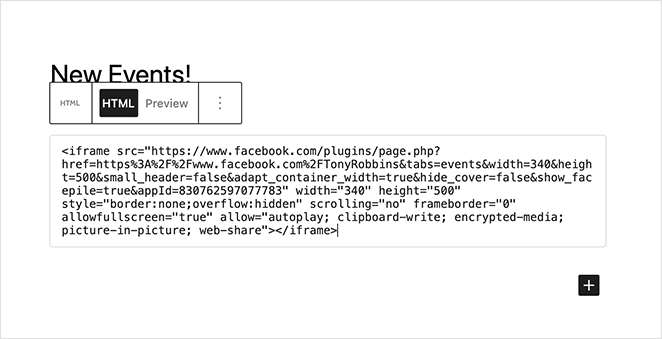
Sie können den Beitrag dann speichern oder veröffentlichen, und wenn Sie ihn in der Vorschau anzeigen, werden Ihre Facebook Events auf Ihrer Website live geschaltet.
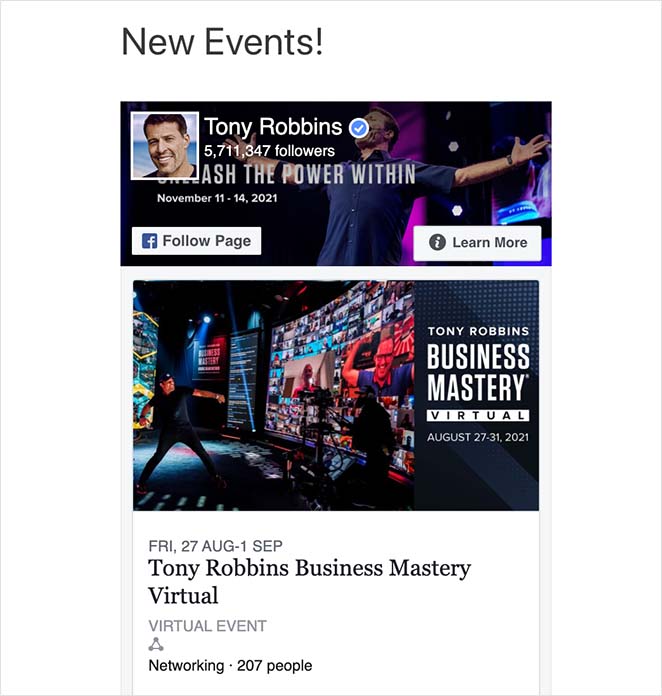
Wenn Sie ändern möchten, wie dieser Feed angezeigt wird, müssen Sie zum Facebook Page Plugin zurückkehren und den wp embed Facebook Code erneut generieren. Allerdings gibt es nur begrenzte Facebook-Einstellungen, die Sie ändern können.
Bevor Sie diese Methode für einen Kunden oder eine Live-Website verwenden, testen Sie sie zuerst mit Ihrer Facebook-Seite. Der Tab „Ereignisse“ des Page-Plugins von Facebook wird seit 2016 inkonsistent unterstützt, und die Ergebnisse variieren je nach Konto. Wenn keine Ereignisse angezeigt werden, verwenden Sie stattdessen die oben genannten Smash Balloon- oder SeedProd-Methoden.
Wie synchronisiert man Facebook Events mit einem WordPress-Kalender?
Wenn Sie Ihre Facebook Events in den Kalender Ihrer Website integrieren möchten, ist die Verwendung einer iCal-URL eine effiziente Methode.
Hier erfahren Sie, wie Sie die iCal-URL erhalten und verwenden:
Melden Sie sich bei Ihrem Facebook-Konto an, gehen Sie zu Ihrem Events-Bereich und wählen Sie das Event aus, das Sie teilen möchten.
Oben rechts sehen Sie eine Schaltfläche mit der Bezeichnung Add to Calendar.
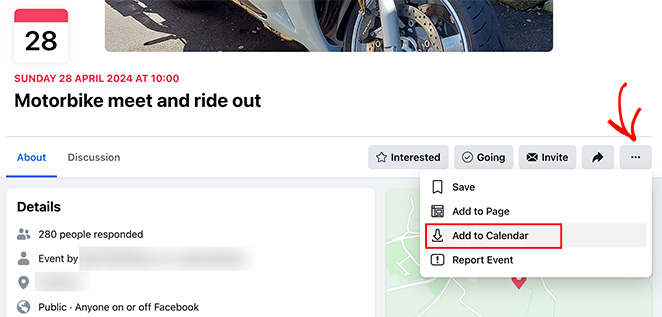
Klicken Sie auf diese Schaltfläche und klicken Sie im Popup mit der rechten Maustaste auf die Schaltfläche „Export“ und wählen Sie „Linkadresse kopieren“.
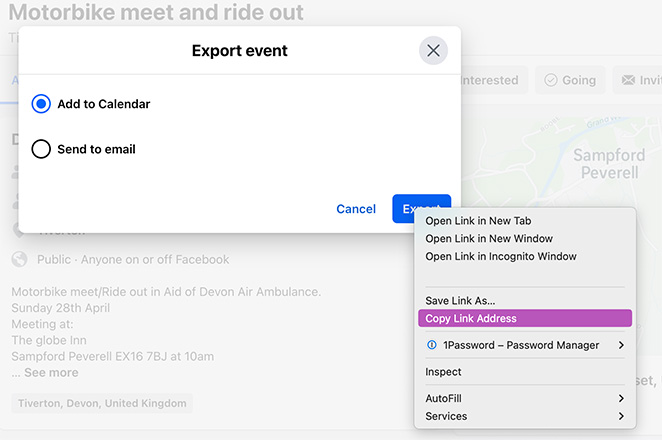
Fügen Sie diese iCal-URL in Ihr WordPress-Kalender-Plugin oder ein beliebiges Tool ein, das externe Feeds unterstützt. So können Sie Ihre Facebook Events automatisch mit Ihrem WordPress Events-Kalender synchronisieren.
Dadurch werden Ihre Facebook Events automatisch mit dem Kalender Ihrer Website synchronisiert.
Was tun, wenn Ihre Facebook Events nicht angezeigt werden
Wenn Sie Probleme haben, Events anzuzeigen, beheben diese vier Prüfungen die häufigsten Probleme.
- Überprüfen Sie Ihre Facebook-Datenschutzeinstellungen. Das Ereignis oder die Seite muss öffentlich sein. Private Ereignisse und eingeschränkte Seiten werden nicht in externen Einbettungen angezeigt.
- Deaktivieren Sie Ad-Blocker oder Sicherheit-Plugins. Einige Sicherheits- und Cookie-Plugins blockieren externe Skripte von Facebook. Versuchen Sie, die Seite in einem Inkognito-Fenster zu laden, um dies zu testen.
- Verwenden Sie den iFrame-Code, nicht das JavaScript SDK. Wenn Sie die manuelle Einbettungsmethode verwenden, wählen Sie immer die iFrame-Registerkarte. Die JavaScript SDK-Version ist browserübergreifend weniger zuverlässig.
- Wechseln Sie zu einem Plugin, wenn nichts davon funktioniert. Facebooks Seiten-Plugin hat seit 2016 inkonsistente Unterstützung für Ereignisse. SeedProd oder Smash Balloon liefern Ihnen ein zuverlässigeres Ergebnis.
Häufig gestellte Fragen zum Einbetten von Facebook-Ereignissen
Warum werden meine Facebook-Ereignisse nicht auf meiner WordPress-Website angezeigt?
Die häufigsten Gründe sind Datenschutzeinstellungen (das Ereignis oder die Seite muss öffentlich sein), Ad-Blocker oder Sicherheit-Plugins, die Facebook-Skripte blockieren, oder die Verwendung der JavaScript SDK-Einbettung anstelle der iFrame-Version. Wenn die manuelle Einbettung immer noch nicht funktioniert, hat die Ereignis-Registerkarte von Facebooks Seiten-Plugin seit 2016 inkonsistente Unterstützung. Wechseln Sie zu SeedProd oder Smash Balloon für ein zuverlässigeres Ergebnis.
Kann ich Facebook-Ereignisse ohne Plugin einbetten?
Ja. Verwenden Sie das Facebook Seiten-Plugin-Tool, um einen iFrame-Einbettungscode zu generieren, und fügen Sie ihn dann in einen benutzerdefinierten HTML-Block in WordPress ein. Sie erhalten keine Designkontrolle oder automatische Updates, und die Ergebnisse variieren je nach Konto. Für eine zuverlässigere Einbettung sind SeedProd oder Smash Balloon bessere Optionen.
Verlangsamt das Einbetten von Facebook-Ereignissen meine Website?
Das kann je nach Methode der Fall sein. Die manuelle Einbettung lädt externe JavaScript- und iFrame-Inhalte von Facebook, was das Seiten-Gewicht erhöht. Plugins wie SeedProd und Smash Balloon sind darauf ausgelegt, diese Last zu minimieren. Wenn die Website-Geschwindigkeit Priorität hat, verwenden Sie den Facebook-Seiten-Block von SeedProd, der in meinen Tests mit nur 16 HTTP-Anfragen in 556 ms geladen wurde.
Kann ich Facebook-Gruppenereignisse in WordPress einbetten?
Die meisten Einbettungstools unterstützen nur öffentliche Seitenereignisse, keine privaten oder Gruppenereignisse. Wenn Sie eine Facebook-Gruppe betreiben, ist die iCal-Synchronisierungsmethode Ihre beste Option. Sie können auch manuell Gruppenereignisse auf einer WordPress-Seite auflisten und auf das Facebook-Ereignis für RSVPs verlinken.
Jetzt wissen Sie, wie Sie Ihre Facebook-Ereignisse direkt auf WordPress einbetten können. Egal, ob Sie einen vollständigen Veranstaltungsfeed, eine einzelne Registerkarte oder eine Kalendersynchronisierung wünschen, es gibt hier eine Methode, die passt.
Möchten Sie, dass Ihre Veranstaltungen besser konvertieren? Versuchen Sie als Nächstes, eine Veranstaltungs-Landingpage mit SeedProd zu erstellen.
Sie könnten auch die folgenden Anleitungen für Ihre WordPress-Website mögen:
- So fügen Sie eine Facebook-Seite zu WordPress hinzu
- So betten Sie Facebook-Videos in WordPress ein
- So erstellen Sie eine Facebook-Landingpage in WordPress
Danke fürs Lesen! Wir würden uns freuen, Ihre Gedanken zu hören. Treten Sie also gerne der Unterhaltung auf YouTube, X und Facebook bei, um weitere hilfreiche Ratschläge und Inhalte für das Wachstum Ihres Unternehmens zu erhalten.



