
The Product Content block displays the full product description for WooCommerce products on your Single Product Templates. It dynamically pulls the product description from WooCommerce for each product, so the correct content always appears without any manual updates.
This block is designed exclusively for use on Single Product Templates. You can use it as-is to display the product description exactly as entered in WooCommerce, or add supplementary text and formatting around the shortcode to customize how content appears on your product pages.
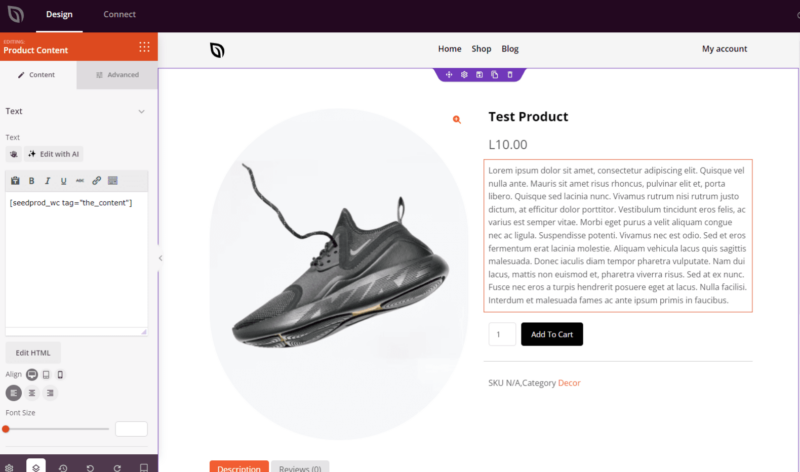
Adding the Product Content Block to Your Pages
Follow these steps to add a Product Content block to your SeedProd Single Product Template:
Step 1: Add the Block
Under Design > Blocks > WooCommerce Template Tags, drag and drop the Product Content block into the desired section of your page.
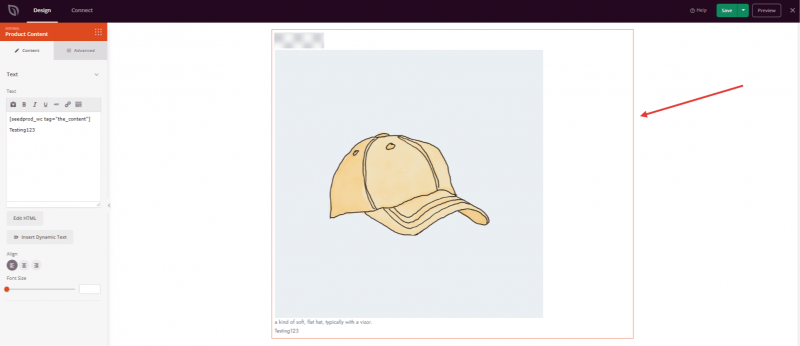
Step 2: Configure Content Settings
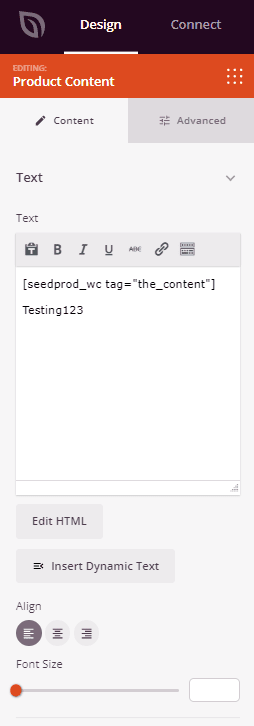
Once added, click on the Product Content block to open its settings. In the Content tab, you’ll find a text area pre-populated with the SeedProd shortcode that dynamically fetches the WooCommerce product description.
Text:
- Content field: Contains the
shortcode by default. This shortcode is what pulls the product description from WooCommerce for each product dynamically — do not remove it unless you intend to replace the product content entirely. You can add additional text, HTML, or formatting above or below the shortcode to supplement the product description. - Visual Editor / Edit HTML: Toggle between a rich-text Visual Editor (for formatted text with toolbar controls) and the HTML editor (for direct code editing). Both modes allow you to work alongside the dynamic shortcode.
- Alignment: Set the horizontal alignment of the text content — Left, Center, or Right. Supports per-device alignment for desktop, tablet, and mobile.
- Font Size: Set the base font size for the content area using the slider (10–72px).
Step 3: Customize the Design
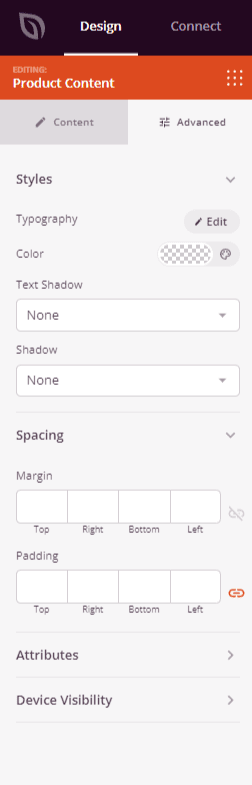
In the Advanced tab, you can customize the typography, color, and visual styling of your Product Content block.
Styles:
- Typography: Set the font family, size, weight, line height, letter spacing, and style for the product content text.
- Color: Set the text color for the product description content.
- Text Shadow: Add a shadow effect to the text — choose from None, Hairline, Small, Medium, Large, X Large, or 2X Large.
- Shadow: Add a box shadow to the entire block for a subtle depth effect.
Spacing:
- Margin: Control the outer spacing around your Product Content block (Top, Right, Bottom, Left). This determines how much space appears between the product description and surrounding elements on the page.
- Padding: Adjust the inner spacing within your Product Content block (Top, Right, Bottom, Left). This creates breathing room between the description text and the block edges.
Attributes:
- CSS ID: Displays the auto-generated unique identifier for your Product Content block. This ID is created automatically by SeedProd for custom styling or JavaScript targeting.
- Custom Class: Add custom CSS classes to apply specific styles from your theme or custom CSS.
- Custom Attributes: Add any HTML attributes to the block wrapper element. Enter each attribute on a new line using the format: attribute-name|value (e.g., data-section|description).
Device Visibility:
- Hide on Desktop: Hide the Product Content block on desktop screens.
- Hide on Tablet: Hide the Product Content block on tablet devices.
- Hide on Mobile: Hide the Product Content block on mobile devices.
Animation Effects:
- Entrance Animation: Choose from various animation effects that play when the Product Content block scrolls into view. Options include Bounce, Fade In, Zoom In, Rotate In, and many more.
Step 4: Save Your Changes
Once you have finished configuring the Product Content block and customizing its appearance, make sure to save your work.
You’ve successfully added a Product Content block to your Single Product Template! The block will automatically display the correct product description for every product, ensuring your WooCommerce pages always show accurate, up-to-date content. Use the typography and spacing controls to style the description so it fits seamlessly into your product page design.